DragonBot
Reaction Roles Manager
This document explains how to use the Reaction Roles Manager (implemented via the /reaction command with subcommands), expected formats for emoji, examples, and a manual test checklist for maintainers.
Command overview
The bot exposes a single admin command: /reaction with subcommands:
create— Attach a reaction-role mapping to an existing message.- Options:
channel(Channel) — channel containing the target messagemessage_id(String) — ID of the message to attach toemoji(String) — emoji to watch for (unicode or customname:id)role(Role) — role to assign when reactedlabel(String, optional) — small human-readable label stored with the mapping
- Options:
-
list— List mappings for the guild. delete— Delete a mapping by its_id(returned bycreateor shown inlist).
Notes on emoji formats
- Unicode emoji: use the emoji character itself (for example
✅,👍). - Custom guild emoji: use the
name:idformat (for examplecool_emoji:123456789012345678).- The bot will attempt to react with the provided emoji; if the bot lacks access to the custom emoji (different guild) the reaction may fail silently.
Examples and notes for custom emoji
- When storing or accepting emoji input from admin commands prefer the canonical
name:idrepresentation for server (custom) emoji. Examples:party_parrot:827364827364827364my_cool_emoji:123456789012345678
- If an admin supplies only a numeric ID or only a name, normalize when possible:
- numeric-only: look up in
guild.emojis.cache.get(id)to find the emoji name - name-only: look up in
guild.emojis.cache.find(e => e.name === name)to resolve an id
- numeric-only: look up in
- Note: custom emojis are guild-scoped. Reacting with
name:idwill only succeed if the bot can use that emoji (it must be available to the bot’s account). If not available, the bot’s.react()call will fail with a permission or invalid emoji error.
Permissions & common failure modes (troubleshooting)
- Required bot permissions (guild + channel):
- Add Reactions
- Read Message History
- View Channel
- Manage Roles (if assigning/removing roles)
- Manage Messages (optional: if the bot removes reactions or edits messages)
-
Common failure modes and diagnostics: 1) Missing ‘Add Reactions’ — attempting to add a reaction will throw a DiscordAPIError (50013) or fail silently. Check the bot’s channel-level permissions and grant “Add Reactions”. 2) Missing ‘Manage Roles’ — the role assignment will fail when trying to add/remove roles. Ensure the bot has Manage Roles and its role is higher than any role it needs to assign. 3) Rate limits (HTTP 429) — if the bot reacts quickly across many messages it may hit rate limits. The implementation uses exponential backoff for
.react(); if you see repeated 429s, reduce batching or add delays. 4) Invalid custom emoji — if the admin supplies an emoji that doesn’t exist or the bot cannot access it,.react()will fail. Prefer normalizing inputs toname:idand verifying the emoji viaguild.emojis.cacheduring create. 5) Message deleted / missing — the cleanup job should remove stale mappings; if a mapping references a deleted message, reaction attempts will be skipped and a debug log entry may be emitted. - Quick debugging steps:
- Verify the bot’s permissions in the channel (Edit Channel -> Permissions).
- Try reacting manually with a small test script or run
/reaction createand watch the bot’s attempt in the channel. - Check the configured logs channel (if enabled) for error embeds produced by
sendGuildLog. - Confirm the bot’s role position is above roles it needs to manage.
Behavior
createpersists a document: { guildId, channelId, messageId, emoji, roleId, label }.createwill attempt to react to the target message (best-effort) so the emoji is present on the message for users to click.- When a user adds a reaction, the
reactionRolesAddevent handler consults the DB and assigns the configured role(s). The inverse handler removes the role on reaction removal.
Manual test checklist
- Setup
- Ensure the bot has the following permissions in the guild and target channel: Add Reactions, Read Message History, View Channel, Manage Roles (to assign roles).
- Ensure the bot’s role is above the target role in the server’s role hierarchy.
- Create a mapping
- In a test server, pick a message and run
/reaction create channel:#some-channel message_id:123456789012345678 emoji:✅ role:@Member. - The command should reply with a mapping id.
- Inspect the message — the emoji should be present (bot attempted to add it).
- In a test server, pick a message and run
- React as a non-admin user
- Click the reaction on the message.
- The user should receive the role configured in the mapping.
- Remove the reaction; the role should be removed.
- List mappings
- Run
/reaction listand confirm the mapping is present with the_id, channel, message id, emoji, and role mention.
- Run
- Delete mapping
- Use
/reaction delete id:<mappingId>and confirm it returns success. - Confirm
/reaction listno longer shows the mapping.
- Use
- Edge cases to verify manually
- Invalid emoji: try
emoji:doesnotexist— the command should still create a mapping (it stores the string) but the bot may not be able to react; document limitations. - Role removed from guild: delete the role in the server, then attempt to react — the handler should not throw. If mappings remain, consider cleaning them up.
- Message deleted: delete the target message and then react elsewhere; handler should silently ignore missing messageId mappings.
- Invalid emoji: try
message_content usage (create_message subcommand)
-
The convenience subcommand
/reaction create_messageaccepts a requiredmessage_contentstring and will post that content into the specifiedchannel, then create the mapping using the new message’s id. Example:/reaction create_message channel:#announcements message_content:”Welcome! React to get Member role” emoji:✅ role:@Member
Notes:
create_messageis the explicit UI for creating a message and mapping it. It replaces the previous inlinemessage_contentoption on thecreatesubcommand.- If the bot fails to send the message (permissions or channel restrictions), the command will reply with an error and will not create the mapping.
Usage examples
Below are copy-paste examples you can run in a server where the bot is installed (admin required).
-
Create mapping on existing message:
/reaction create channel:#announcements message_id:123456789012345678 emoji:✅ role:@Member
Expected reply (ephemeral): “Created mapping with id
" -
Create a message and mapping in one step:
/reaction create_message channel:#announcements message_content:”Welcome! React to get Member role” emoji:✅ role:@Member
Expected reply (ephemeral): “Created mapping with id
"
Screenshot placeholders (optional):
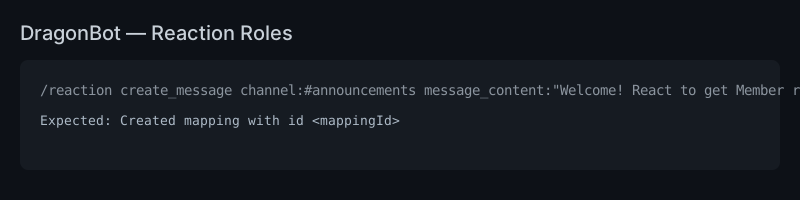
Add a screenshot above named create_mapping_example.png into docs/images/ to show an example UI.
Suggested follow-ups (to mark feature as complete)
- Add server-side docs in
README.mdordocs/reactionRoles.mdwith screenshots and example commands. - Add tests for edge cases: invalid emoji, missing role, message deleted, duplicate mapping prevention, permission failures.
- Add an administrative audit log when mappings are created/deleted (post to the configured logs channel via
ChanLogger). - Optionally implement
createto accept amessage_contentoption so the bot can create the message itself and pre-react (improves UX). - Optionally implement
createto accept amessage_contentoption so the bot can create the message itself and pre-react (improves UX). (Implemented)
Quick manual checklist
- Verify the bot logs creation/deletion to the configured logs channel (if configured in server settings). Check that the embed includes mapping id, channel, message id, emoji, and role.
- After creating mappings, test reacting/removing reactions with a regular user to validate assign/remove behavior.